Performing an accessibility audit on iOS with VoiceOver
A great way to start assessing the accessibility of your iOS or iPadOS app, is by turning on VoiceOver and start using it. VoiceOver is Apple's screen reader, that allows people with vision impairments to control their devices using just touch and their hearing.
VoiceOver relies on many accessibility affordances that other accessibility technologies also use. This means that if you get VoiceOver right, you're already a long way to making your app completely accessible!
Table of contents
Enabling VoiceOver
You can enable VoiceOver in the Accessibility section of your device's Settings.
- Open the Settings app.
- Select Accessibility.
- Select VoiceOver.
- Enable VoiceOver.
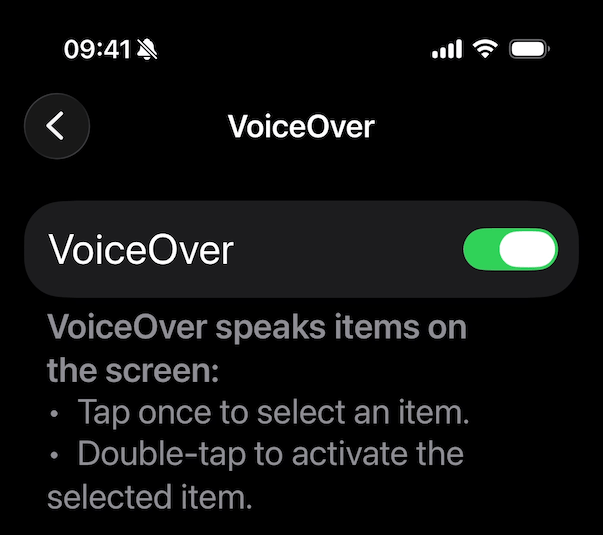
If this is your first time enabling VoiceOver, you will get an alert explaining it and offering you a chance to practice first. You can always do this later as well. The main gestures you can use are;
- Swipe left ← or right → to move the focus backward or forward.
- Double-tap to activate the currently focused element.
- Adjust values by swiping up ↑ or down ↓.
- Hold and drag one finger on the screen to explore elements.
Increase the speaking rate
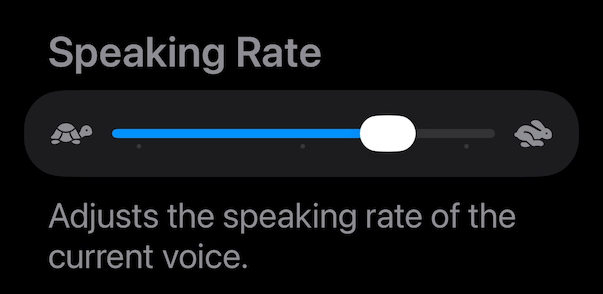
VoiceOver's default speaking rate is pretty slow and can hinder you during an audit. You can increase VoiceOver's speaking rate with the slider. My suggestion is to set to something like 75%, which is a decent combination of quick and still manageable. At first, this will seem too high, but you will get used to it in time. People that rely on the screen reader often have the speaking rate maxed out!
Turn on captions
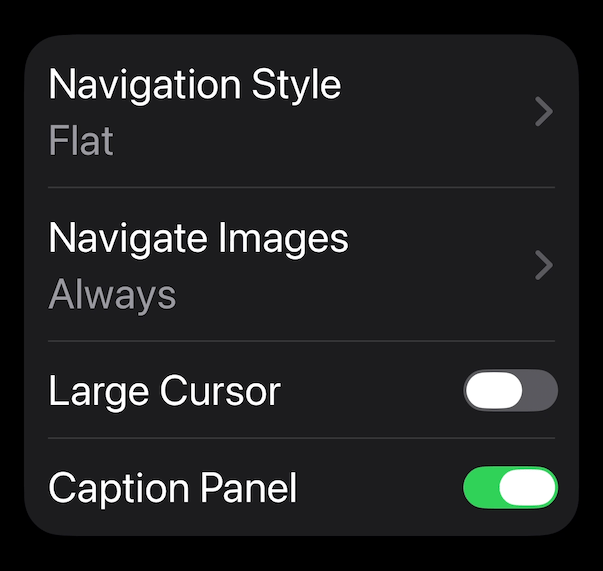
When performing an audit, you often need know specifically about what has just been said, which can be hard with just voice. You can turn on the caption panel with the toggle near the bottom of the VoiceOver settings. This will show a small, persistent panel at the bottom of your device's screen, which captions whatever VoiceOver is currently announcing. This is very useful when making screen recording or screenshots to indicate an issue.
What to look for
When performing an audit with VoiceOver, you are mostly looking for the following;
Name, role, value
Each focused element should have a correct name, role and value ;
- The name indicates which element we're focused on.
- The role indicates the type of element (e.g. static text, a button or a toggle).
- The value tells you the current value of an element, usually relevant in controls.
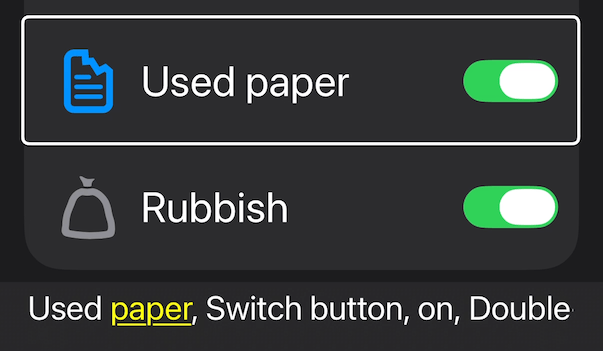
For example, the toggle in the picture above is named 'Used paper', it's role is 'Switch button' (which is a verbose way of saying 'toggle') and its value is 'on'.
[!Note] VoiceOver is but one of the many possible screen readers, which can be very diverse and can have different outputs. While you may not encounter this when auditing an iOS app, you might notice that Android and PC operating systems can have vastly different ways of announcing on-screen information. Even more, the accessibility information can also be used by other technologies, such as braille readers.
Common issues
- Text headings aren't marked as 'heading'.
- Buttons that aren't marked as 'button'.
- Controls that do not have an appropriate name.
All information is available
All the information on the screen should be reachable and be able to be announced by the screen reader. This includes non-textual information, such as colors indicating errors or successes, or the important information inside of a graph.
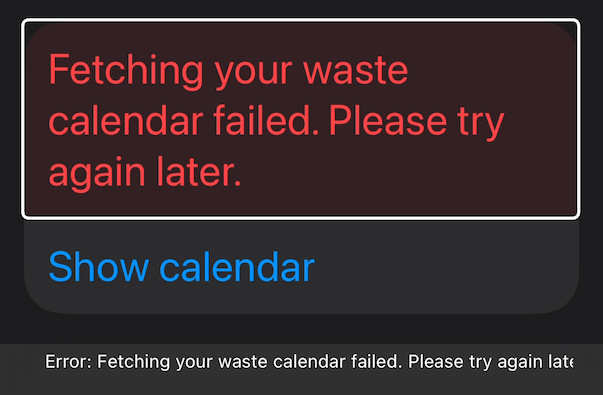
Information that belongs together ideally is grouped into one focusable element. This is common in lists, for example of events or visits that include the location and date. Instead of swiping through three different items, each row can focused as one element.
Related to the above, elements that duplicate already available information should not be announced. If a category label has both its name in text and an icon depecting the name, then it can be announced using only the text. And purely decorative elements should not be announced at all.
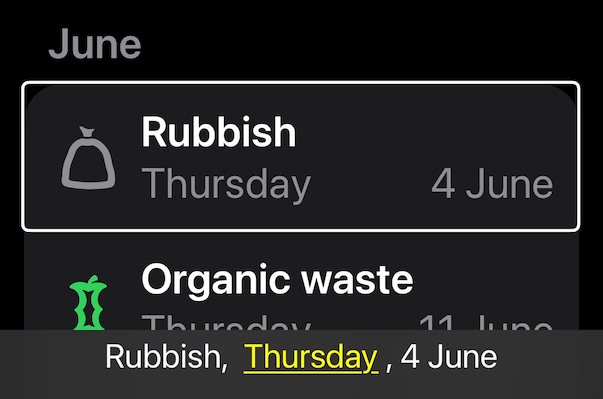
[!Note] Announcing all information doesn't have to happen all at once. iOS has a feature where you can hide secondary information behind a gesture for accessibility purposes. This can be useful in large lists of densely packed information, such as albums rows in a music app. Apps can also decide to offer detailed information about a complex element in a separate screen.
Common issues
- Controls are isolated and don't announce what they are for. Just having the information in a previous or next element isn't sufficient.
- Icon-only buttons that do not announce what the button will do when activated.
- Icons or colors are used to indicate some kind of status, but this information is not announced.
- Images are announced with their literal filename. Hello
icon_heart_fill_vector, my old friend.
All functionality can be used
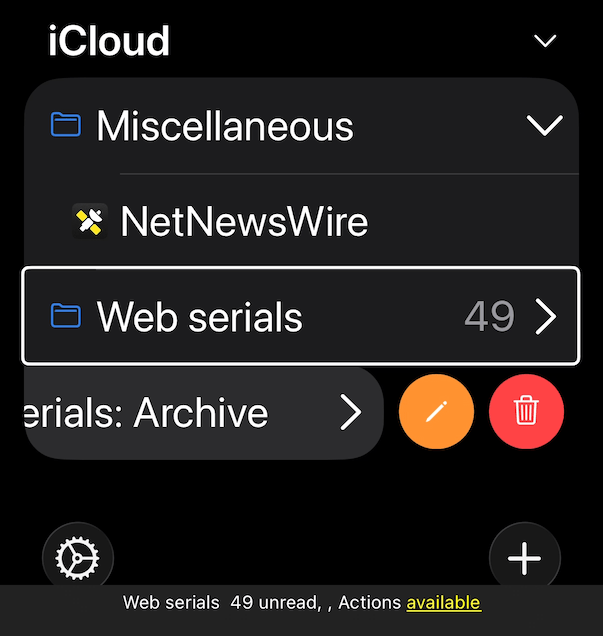
Every action that someone without accessibility technology can take, should also be accessible through VoiceOver. Buttons should be able to activate, and initially hidden actions should also be available. iOS provides secondary actions that you can access by swiping up ↑ or down ↓.
Common issues
- Buttons can't be activated.
- Hidden actions are not available.
- Drag areas, such as maps, can't be controlled.
Advanced gestures
VoiceOver has some other commands that apps can support and really make using the app a whole lot nicer. Apps that use these gestures properly, show that they are truly thinking about the user experience for everyone!
Escape gesture
Apps are filled with sheets, modal dialogs and screens pushed on top of each other. VoiceOver provides a way to go back in the hierarchy with its escape gesture.
By performing a Z-gesture with two fingers, you can go back. This usually means dismissing a sheet, modal dialog or going back a screen.
Magic Tap
A double-tap with two fingers triggers a Magic Tap. Apps can configure their screens to react to this to perform the most probable or important action on the screen.
For example, you could use this to move forward in a multi-page onboarding flow, or to save changes made in a form. In any screen, ask yourself; "Would it be safe to just move forward here?" If the answer is yes, then a magic tap should be configured for that screen.
And if the app has nothing configured, then at least you can enjoy some music playing! 🎼
Tips and tricks
You can get quite far using just the basic four gestures. But there's much more you can do with VoiceOver!
Toggle speech
You can use VoiceOver without the announcements being spoken out loud. In combination with the caption panel, this allows you to use VoiceOver even when making sounds isn't convenient or polite. Do a double-tap with three fingers at once to toggle speech.
Use Screen Curtain
Do you want to save your battery? Are you ready for hard mode? With VoiceOver enabled, perform a triple-tap with three fingers to toggle Screen Curtain. This will turn off your entire display off, but still allowing you to keep using it with VoiceOver.
A great way to assess the accessibility user experience is to perform a critical task without any visual aid. Often, you can find places where the app's functionality can be improved just by trying to achieve basic tasks with screen curtain on.
Explore other commands
VoiceOver has many more commands and options. Take the time to go over the other options in VoiceOver's Settings. And especially take a look at Commands, where you can read about all the touch gestures that are available in VoiceOver.
Conclusion
VoiceOver and other screen readers are some of the most well-known accessibility technologies and usually the first thing that people think about when they consider digital accessibility. Getting it right gets you a long way to a truly accessible app, and because of that VoiceOver is worth it to be the first thing you audit. And show that you really care by checking whether the advanced gestures are used properly as well!
And don't forget about all the other accessibility technologies. ♿️